
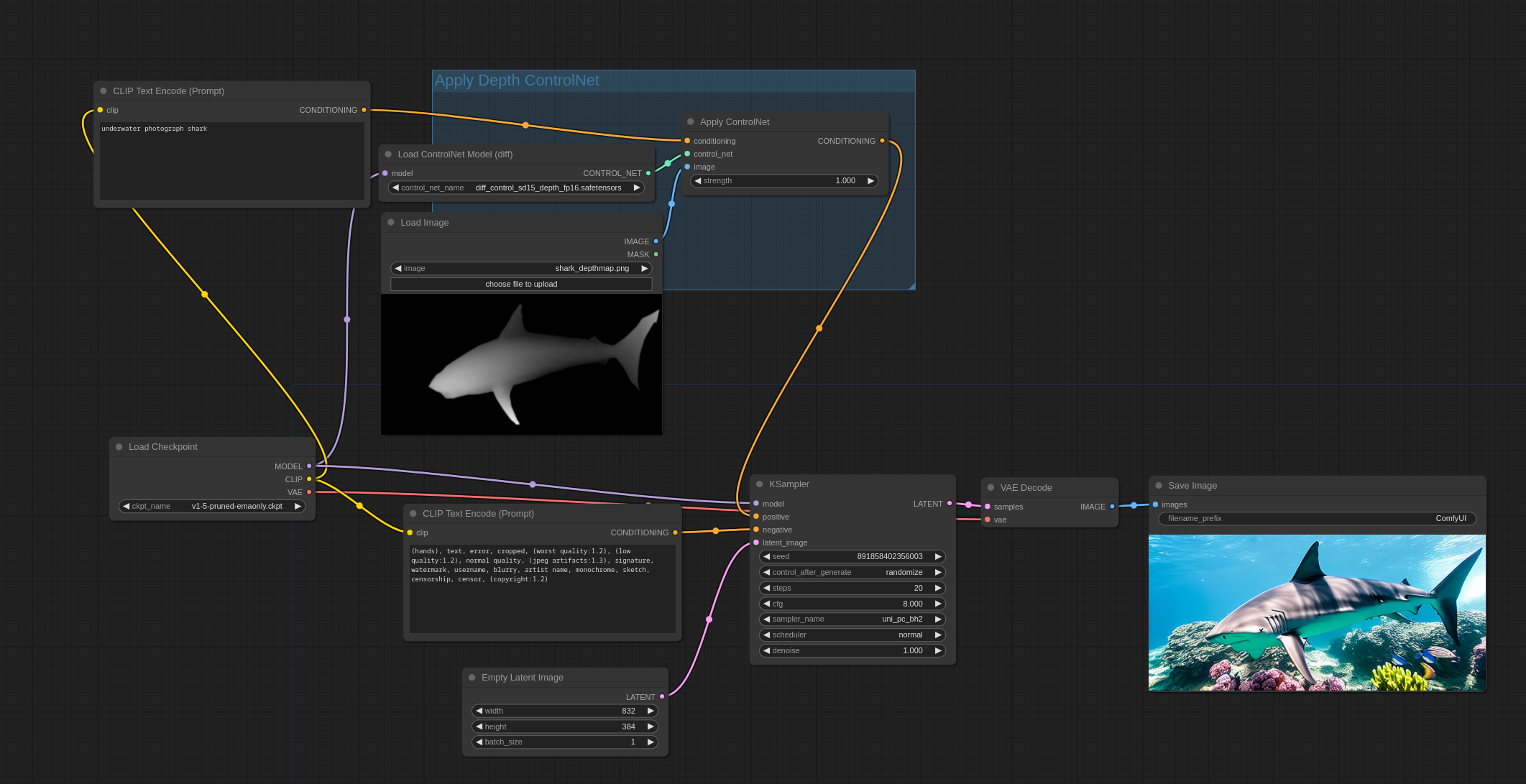
What is ComfyUI?
ComfyUI is a node-based graphical user interface (GUI) designed for Stable Diffusion, an AI model that generates images from text prompts. By allowing users to construct image generation workflows through interconnected nodes, ComfyUI offers enhanced flexibility and transparency, enabling customization and optimization of the image creation process.

ComfyUI serves as a modular interface for Stable Diffusion, breaking down the image generation workflow into individual components called nodes. Each node represents a specific function, such as loading a model, encoding text, or sampling images. By connecting these nodes, users can create tailored workflows that suit their specific needs. This approach not only provides greater control over the image generation process but also offers insights into the underlying mechanics of Stable Diffusion.
Getting Started with ComfyUI
Installation
To begin using ComfyUI, follow these steps:
- Download ComfyUI: Access the official ComfyUI GitHub repository to download the latest version.
- Install Dependencies: Ensure your system meets the necessary requirements, including compatible hardware and software dependencies. Detailed instructions are available in the ComfyUI documentation.
- Launch ComfyUI: After installation, run the application to access the main interface.
Interface Overview
Upon launching ComfyUI, you’ll encounter a workspace where you can add and connect nodes. The interface supports intuitive actions such as dragging and dropping nodes, zooming, and panning, facilitating seamless navigation and workflow construction.
Creating Your First ComfyUI Workflow

Load a Checkpoint Model
Begin by adding a ‘Load Checkpoint’ node to your workspace. This node allows you to select a pre-trained Stable Diffusion model, which serves as the foundation for generating images. Ensure the model is compatible with ComfyUI and is properly configured.
Set Up Text Encoding
Add ‘CLIP Text Encode’ nodes for both positive and negative prompts. These nodes process your textual descriptions into embeddings that the model can interpret. Accurate encoding of prompts is crucial for generating images that align with your vision.
Initialize Latent Image
Incorporate an ‘Empty Latent Image’ node to define the dimensions and batch size of the images you intend to generate. This node initializes the latent space, which is essential for the diffusion process.
Configure the Sampler
Add a ‘KSampler’ node, which manages the denoising process during image generation. Connect it to the previously added nodes to establish the workflow. The sampler plays a vital role in refining the image from random noise to a coherent output.
Decode the Image
Finally, include a ‘VAE Decode’ node to convert the latent representation into a viewable image format. Connect this node to a ‘Save Image’ node to store or preview the generated image. The VAE (Variational Autoencoder) is responsible for translating the latent space representation back into pixel space.
Executing the Workflow
After constructing your workflow, input your desired prompts into the respective ‘CLIP Text Encode’ nodes. Click the ‘Queue Prompt’ button to initiate the image generation process. ComfyUI will process the workflow sequentially, resulting in the creation of an image based on your specifications.
Exploring ComfyUI’s Advanced Features
ComfyUI’s node-based architecture allows for extensive customization. You can experiment with various nodes to implement features such as image-to-image transformations, inpainting, and the integration of LoRA models. By adjusting node parameters and connections, you can fine-tune the image generation process to achieve desired outcomes.

Image-to-Image Transformations
Utilize the ‘Image Input’ node to feed existing images into the workflow. This enables modifications and enhancements based on your prompts, allowing for creative alterations of original images.
Inpainting
Inpainting involves filling in missing or corrupted parts of an image. By incorporating inpainting nodes, you can restore or modify specific areas within an image, providing a powerful tool for image editing.
Integrating LoRA Models
Low-Rank Adaptation (LoRA) models can be integrated into your workflow to fine-tune the image generation process. This allows for the incorporation of specialized styles or features, enhancing the versatility of your outputs.
Conclusion
ComfyUI offers a powerful and flexible platform for interacting with Stable Diffusion models. Its modular design empowers users to create tailored workflows, providing deeper insights into the image generation process. By following this guide, beginners can embark on their journey with ComfyUI, unlocking the potential to generate diverse and customized images.
For a visual demonstration and further insights, you can refer to the following video:
Need some prompt inspiration or prefer an easier way to generate your images? Check Prompthero today
Deja un comentario